Start your $9 trial, add your website and review the business details. Add tracking to measure visits and goals, connect Google for search performance, then use the dashboard or your AI to decide what to improve.
The shortest path
- Sign in and start the trial.
- Add your website. Sextant reads it and writes your business details.
- Link your AI app, or choose to set up in Sextant.
- Add the tracking code, or send it to your web person.
- Connect Google, or skip it.
- Ask your first question.
Sextant starts research when you add your site, using your Research credit. You can review audit findings, rankings and AI visibility before the tracking code has counted its first visit.
Sign in and start the trial
- Open app.sextantweb.com/sign-in and click Continue with Google, or ask for an email link. There is no password.
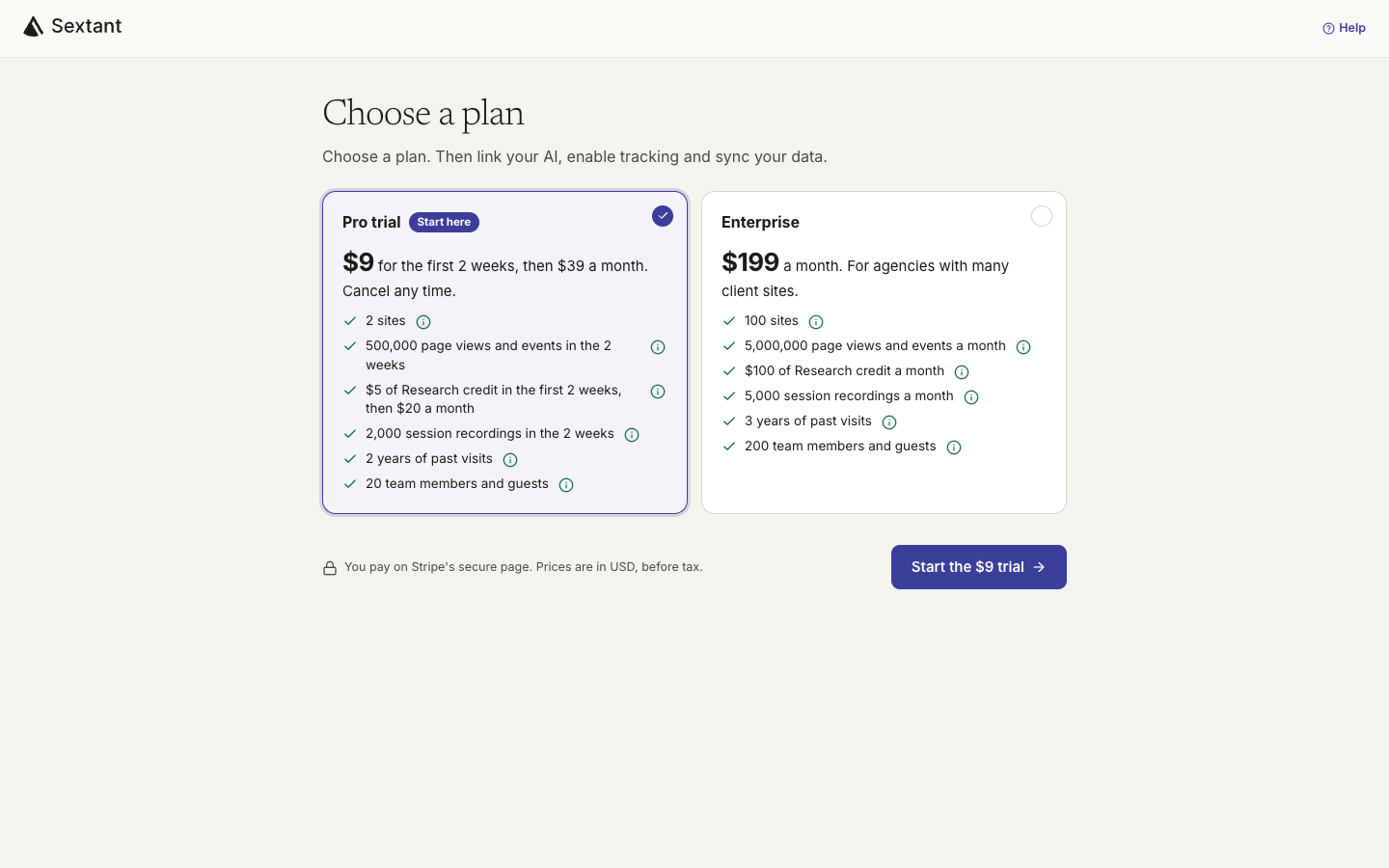
- On Choose a plan, keep Pro trial and click Start the $9 trial.
- Pay on Stripe’s secure page. The trial is $9 for the first 2 weeks, then $39 a month. Cancel any time.
Add your site and check what Sextant wrote
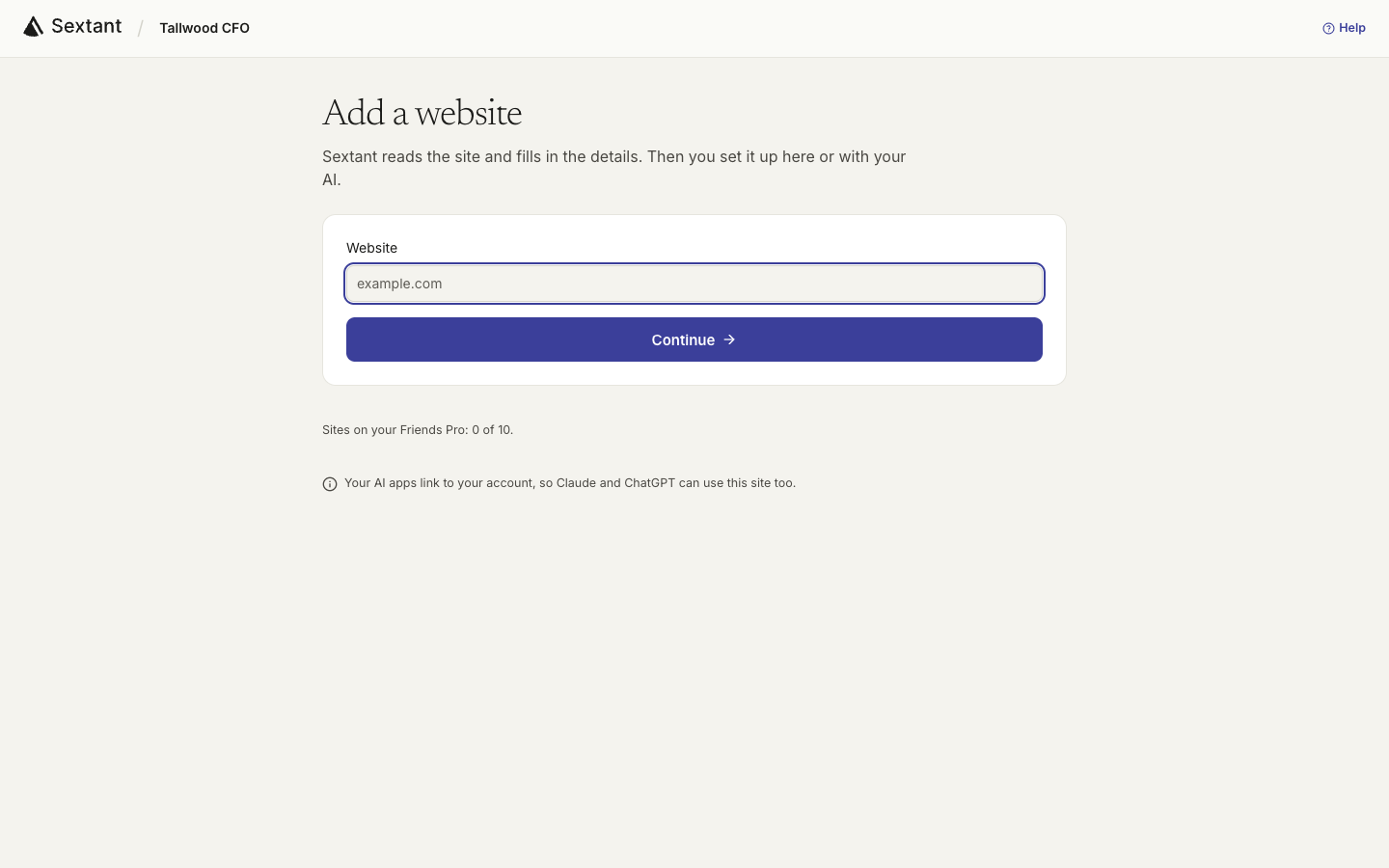
- On Add a website, type your domain and click Continue.
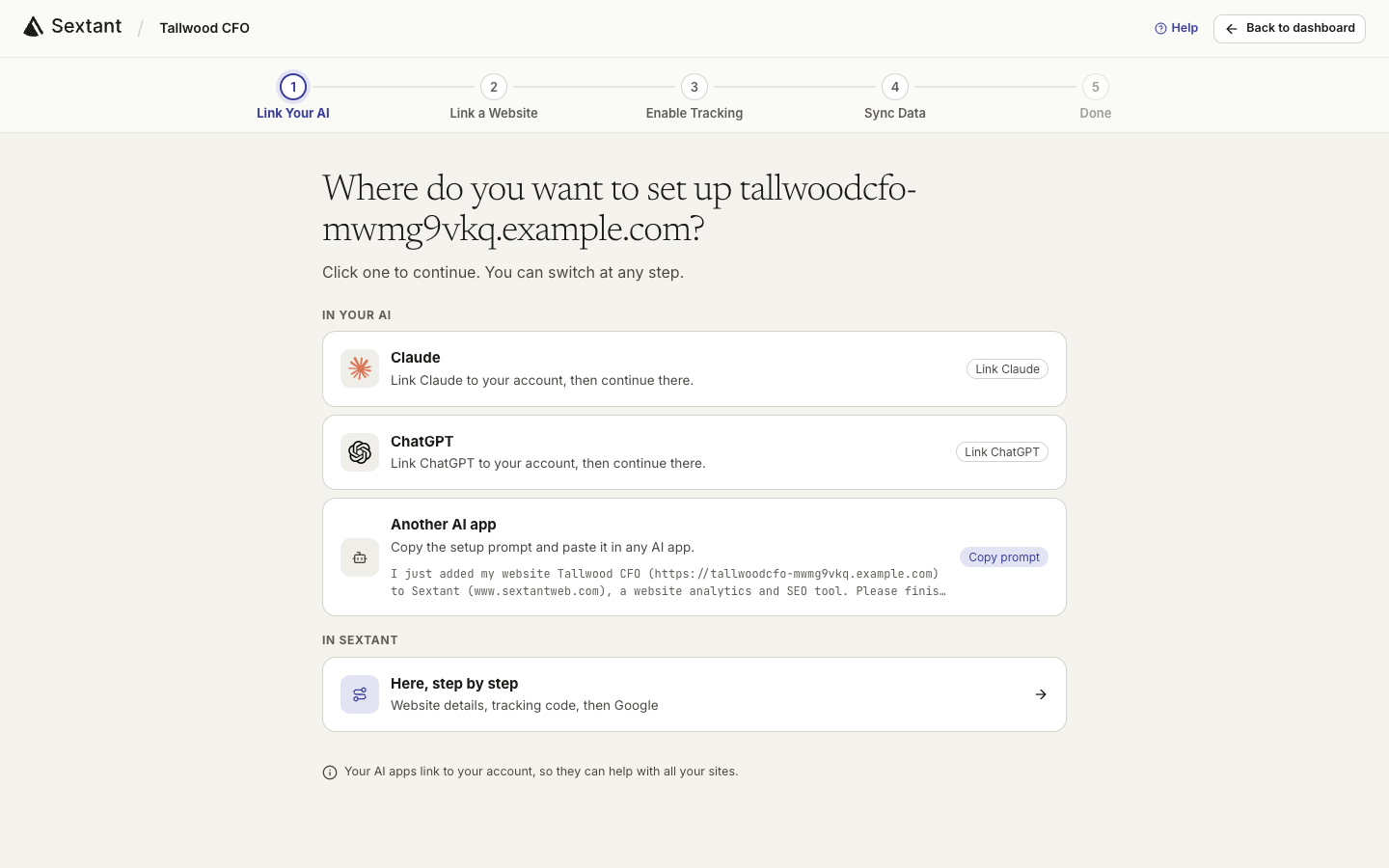
- In setup, choose your AI app or Here, step by step. What each choice does.
- In Link a Website, read the competitors, business overview, positioning and ideal customers Sextant wrote from your site. Fix what is wrong, then click Save and continue.
Review your business details and competitors so suggestions are relevant to the customers you want to reach.
Add the tracking code, or send it on
Tracking shows visits and completed goals, such as inquiries. The code uses no cookies and cannot edit your website.
If you edit your site yourself: in Enable Tracking, click your builder, follow its 3 steps, click Copy code and paste it where the steps say. Then publish and open your site once. Where the code goes in each builder.
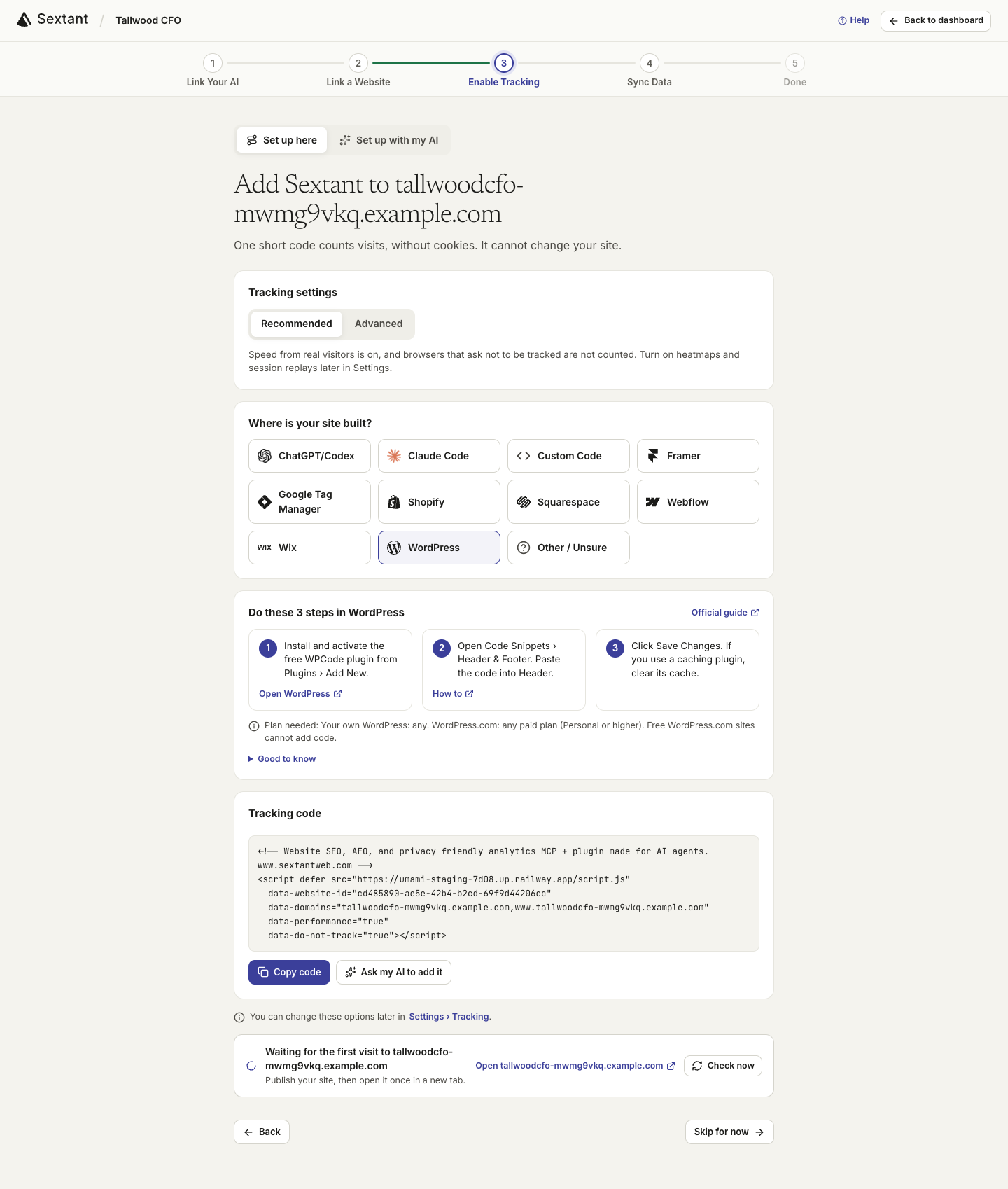
If someone else runs your site: choose your builder (or Other / Unsure), click Copy code, and send it with this message. Click Skip for now and come back when they say it is live.
Hi, could you add Sextant’s analytics code to our website?

- Add it once, site-wide, inside <head> (the layout or template every page uses), not in one page’s settings.
- Keep the code exactly as it is, then publish.

[paste the code from Sextant here]Connect Google, or skip it
If you use Google Search Console, connect it: it is the only place your real Google searches and clicks come from. In Sync Data, click Sign in with Google, leave both boxes checked on Google’s screen, and pick your site.
- Your site is not in the list? Sextant can verify it for you with one DNS record. Step by step.
- Used Google Analytics before? Import up to 2 years of past visits, so your charts start before today. How.
- No Google account? Click I don’t use Google. Visits, rankings and AI answers still work. What changes.
Ask your first questions
On Done, click Continue in Claude or Continue in ChatGPT. The prompt asks your AI to check your setup, suggest a weekly routine and offer the first fixes. Or click Open my dashboard to explore on your own.
Good first questions:
- “What should I fix first on my website?”
- “Which pages bring in the most inquiries?”
- “Does ChatGPT recommend my business? Who does it recommend instead?”
- “Which Google searches am I close to page one for?”
Use it from your phone
- Claude on your phone: add the Sextant connector once on claude.ai or in Claude Desktop. It then works in the Claude phone app too. Connect Claude.
- The dashboard opens in your phone’s browser at app.sextantweb.com. Sign in with the same email you use on your computer.
- Email sign-in links should be opened on the device where you asked for them, so ask for the link on your phone when you sign in there.
- The tracking code is easier to add from a computer, where your website builder is open.
One site or a few
Pro holds up to 10 sites (2 during the 2-week trial), so a second brand, a shop or a landing site fits in the same plan. Open All sites and click Add site for each one.
- Each site gets its own tracking code, its own Google property and its own business details.
- Your AI connection covers every site: name the site in your question.
- All sites share the workspace’s monthly Research credit.
If something does not work
- No visits yet: publish the site, open it in a new tab, then click Check now. More fixes.
- Google does not list your site: verify it with Sextant.
- Your AI says it cannot reach Sextant: check the connection.
For detailed steps and troubleshooting, use the full setup guide.