Choose where each client site belongs, then add tracking and connect its Google data. Give clients guest access or a share link, and review results regularly in the dashboard or your AI.
Your workspace or the client’s?
Choose a workspace model for each client before adding their site. It determines billing, access and future handover.
| Agency workspace | Client’s own workspace | |
|---|---|---|
| Who owns it | You | The client |
| Who pays | You, one plan for many clients | The client, for their own plan |
| Your access | Owner on every site | A guest with the Admin level, invited by the client |
| Client access | A guest login or a share link | Full: it is their workspace |
| Fits | Retainers you bill for, many small sites | Clients who want to own their data long term |
Set up the agency workspace
- Sign in at app.sextantweb.com/sign-in with your agency email.
- Choose a plan. The $9 Pro trial holds 2 sites for its 2 weeks, then 10. Adding more clients at once? Pick Enterprise (100 sites), or skip the trial with Choose Pro in Workspace usage & limits.
- Rename the workspace after your agency in its Workspace settings. Your first workspace can take the business name of its first site, which may be a client’s.
- Working alone or with a small team? Your first workspace is enough: everyone you invite joins as a guest with a level on each site.
- A larger team? Create a separate agency workspace (All sites › the workspace name at the top of the sidebar › Create workspace) so your staff join as members. It needs its own plan.
Add every client site
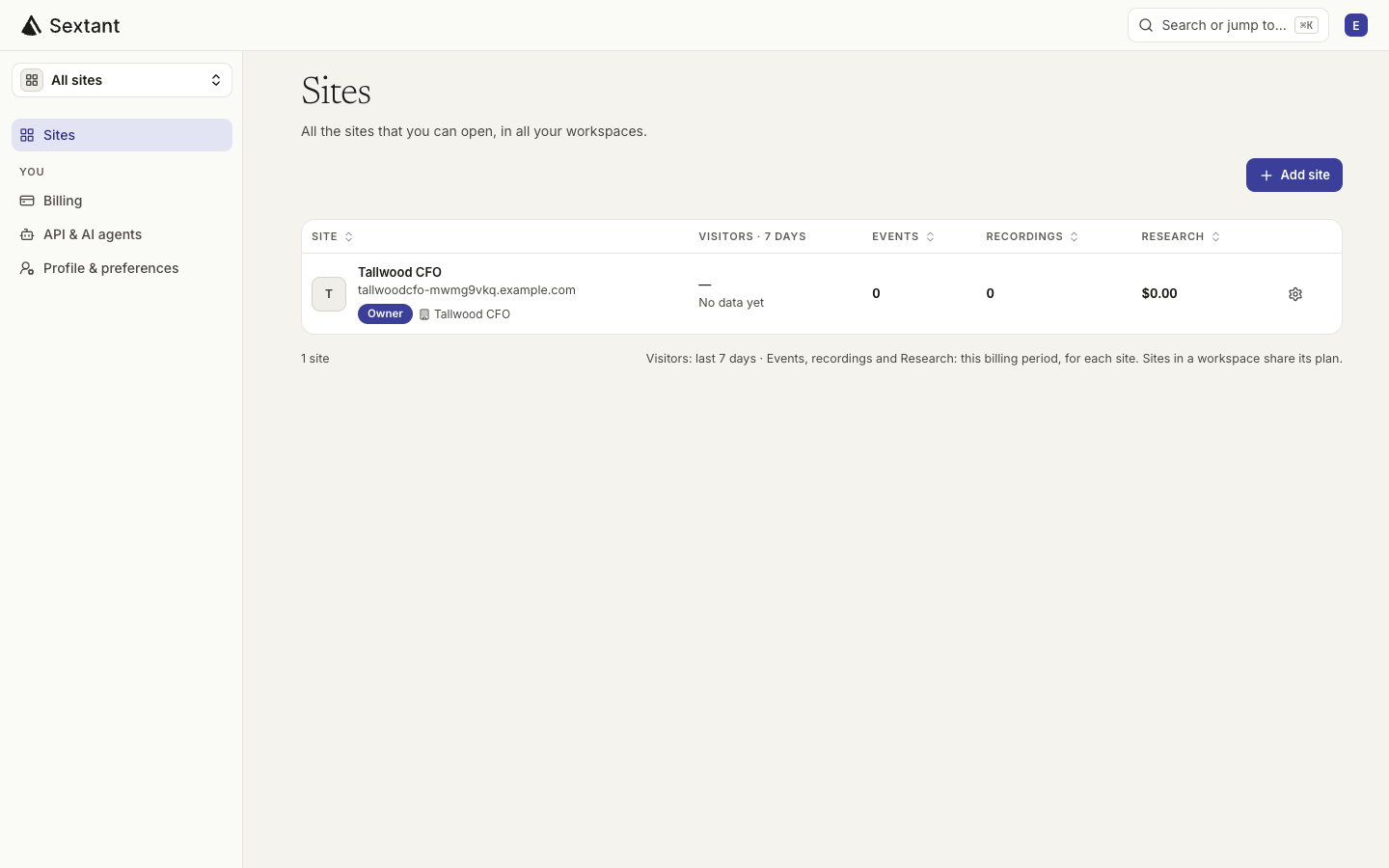
- On All sites, click Add site, type the client’s domain and click Continue.
- Check the business details Sextant wrote. Their competitors drive every comparison you show the client.
- Add the tracking code where the client’s site is built, or send it to their developer. Builders · developer message.
- Connect the client’s Google data in Sync Data, or skip it for now.
- Google access: connecting Search Console needs a Google account with access to the client’s property. Either the client adds your Google account as a user in their Search Console, or you invite the client as a guest Admin and they click Sign in with Google themselves.
- Faster with AI: ask your AI to add the next client’s site to Sextant and set it up with you. It still asks before each change.
- Each new site starts Sextant’s weekly research on the workspace’s Research credit. What it costs.
Client access: guest login or share link
| Guest login | Share link | |
|---|---|---|
| What the client sees | Their site only: visits, Google search, rankings, AI visibility, audits | Only the analytics sections you choose |
| Login | Their own email | None |
| Counts toward your plan’s people | Yes | No |
| Best for | Clients who explore, or use their own AI app on their data | A monthly snapshot in a client email |
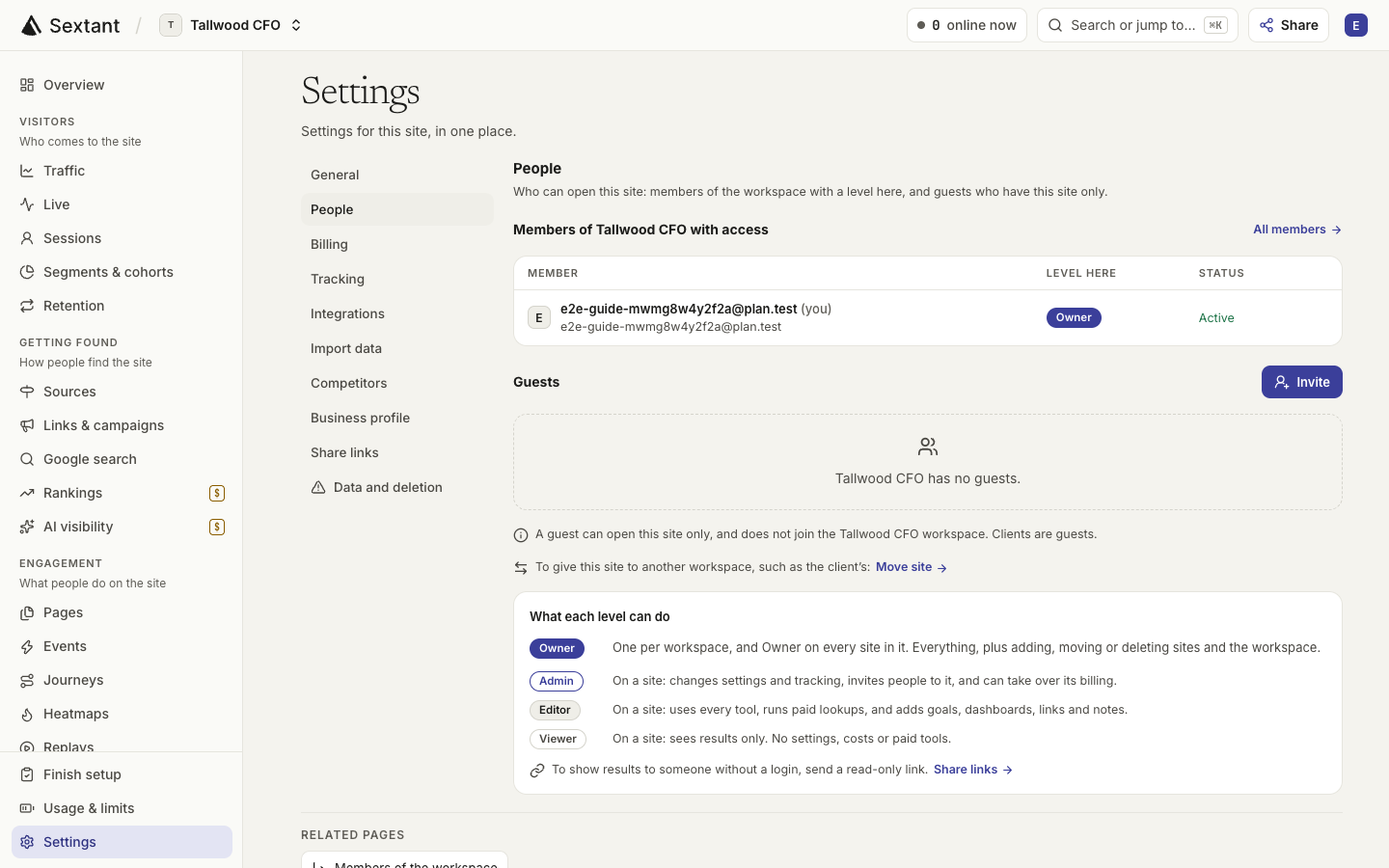
| Where | The site’s Settings › People › Invite (Viewer level) | The site’s Settings › Share links |
Who pays
The workspace Owner pays one plan for the sites it holds. In an agency workspace, you manage the Sextant bill and bill clients separately.
- All sites in a workspace share its events, recordings and Research credit.
- Each site’s Usage & limits page can set a limit for that site, so one client cannot use up the month’s Research credit.
- Extra usage stays off until you set a limit in Workspace usage & limits.
- A client who wants to pay Sextant directly needs their own workspace and plan.
Move or hand over a client site
- Between your own workspaces: Settings › Data and deletion › Move to another workspace › Move site. Data and settings move with it.
- To a client who will own it: the client starts their own account and plan and adds the site; you download the site’s data and they restore it under Settings › Import data. They then swap in their new tracking code and invite you back as a guest Admin.
Every step: Move a site, or hand it to a client.
A weekly client check in your AI app
Use the latest weekly checks to draft client updates. If your AI app supports schedules, run this prompt weekly; otherwise, send it when you review client work.
Every Monday, use Sextant for each of my client sites:
1. Compare the last 7 days with the week before: visits, goals, top sources and Google searches.
2. Check the latest site audit, keyword rankings and AI answers. Flag new problems and new chances to be found.
3. For each client, give one headline, the 3 most useful fixes in order, and one sentence I can send the client.
Show the sites with the biggest changes first. Ask me before any paid lookup.- Send the prompt once and check the answer.
- In Claude (paid plans), ask it to run every week and click Schedule. In other apps, schedule it if the app can, or send it each week.
- Turn the best findings into client work, and log what you shipped as a note on the client’s site.
More on routines: Scheduled checks in your AI app.
When Enterprise makes sense
| Pro | Enterprise | |
|---|---|---|
| Price | $39 a month | $199 a month |
| Client sites | 10 | 100 |
| Page views and events a month | 500,000 | 5,000,000 |
| Research credit a month | $20 | $100 |
| Session recordings a month | 2,000 | 5,000 |
| Past visits kept | 2 years | 3 years |
| Team members and guests | 20 | 200 |
Compare Enterprise if you need more sites, higher usage limits or more included Research credit. The Owner upgrades in Workspace usage & limits: upgrades are prorated and start immediately; downgrades take effect at renewal.