Add the company’s sites, connect Google and coordinate tracking with your web team. Invite colleagues at the right access level, then set goals and funnels for leads. Each person can connect their own AI app.
Decide who owns the workspace
Choose a workspace Owner who will manage the plan long term. They handle billing and add or move sites. Workspace ownership cannot currently be transferred in the app.
- Pro ($39 a month): 10 sites and 20 team members and guests. A new Owner’s first 2 weeks are the $9 trial, with 2 sites.
- Enterprise ($199 a month): 100 sites and 200 team members and guests, with 3 years of history.
- The workspace every account starts with treats everyone you invite as a guest, with a level on each site you choose. For a company workspace with members, the Owner opens All sites, clicks the workspace name at the top of the sidebar and chooses Create workspace. A new workspace needs its own plan.
Plans and the sign-up steps: Choose a plan.
Invite colleagues at the right level
Levels are per site, and each person’s AI app works at their level. A simple starting point:
| Who | Level | Why |
|---|---|---|
| Head of marketing, growth lead | Admin | Connects Google, changes tracking and invites people |
| SEO, content and demand generation | Editor | Uses every tool, runs paid research, adds goals, links and notes |
| Web developer | Admin | Installs and checks the tracking code |
| Leadership, sales | Viewer | Sees results only, with no settings or costs |
- Open the site’s Settings › People and click Invite, or Invite members on the workspace’s Members page.
- Type the email addresses, choose the level, and click Send invite.
- Each person accepts from their email with that same address. Invites expire after 14 days.
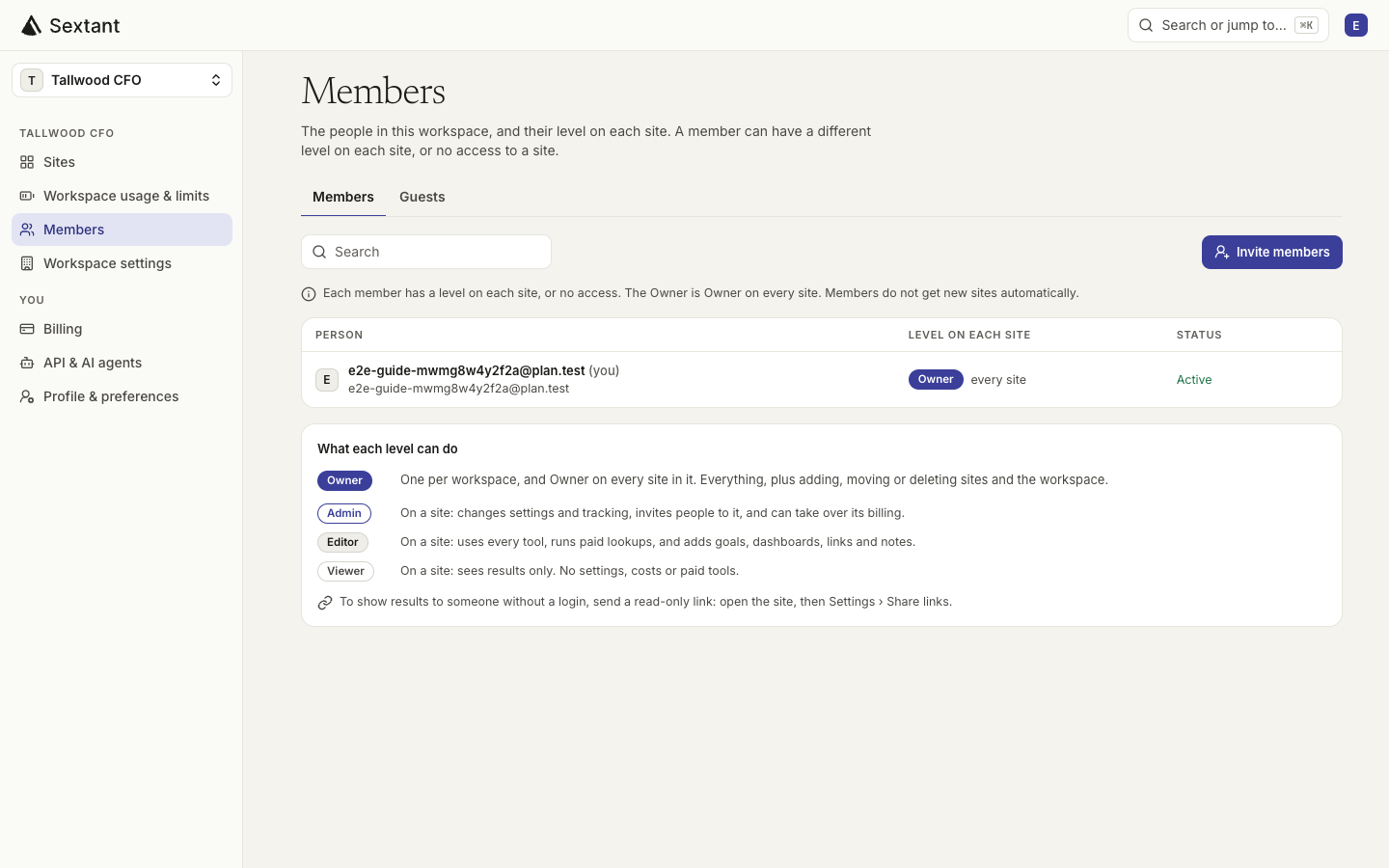
Members, guests and what each level can do: Add teammates.
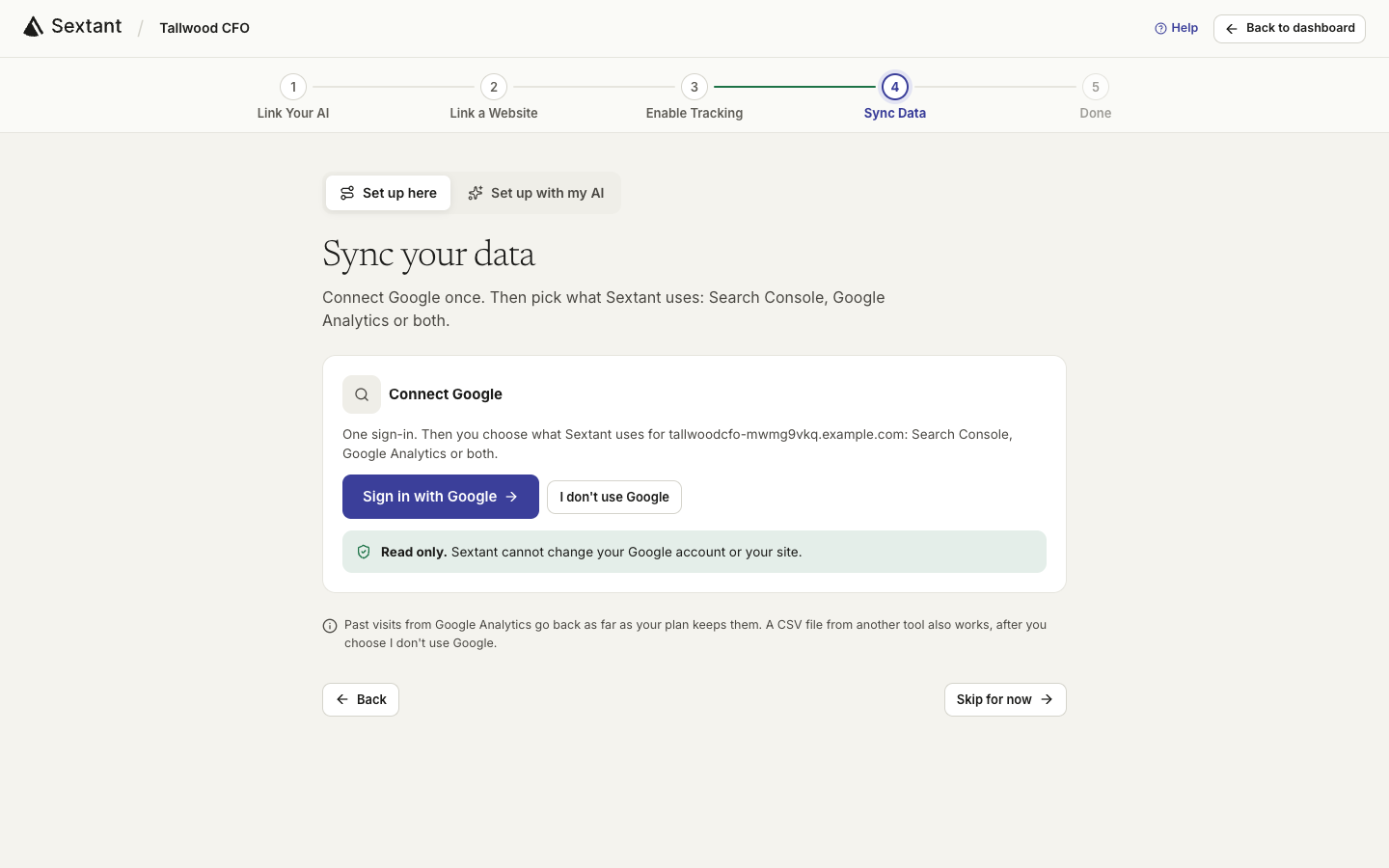
Connect Search Console and bring your GA4 history
Do this with the colleague whose Google account manages Search Console and Google Analytics, and give them the Admin level first. Other Admins of the site see the Google account they connect.
- In Sync Data, click Sign in with Google and leave both boxes checked on Google’s screen.
- Under Search Console, pick the Domain property if you have one: it covers every subdomain. Then click the Use button with its name.
- Under Past visits, pick the GA4 property and dates, then click Import from Google Analytics. Pro keeps 2 years, Enterprise 3.
- Site not listed? Verify it with one DNS record.
- History in HubSpot or another tool? Import a CSV file.
- Imported history has no extra usage charge, and Undo removes an import at any time.
Get the code on every marketing site
Send your web team the code from Enable Tracking, or invite them as Admins so they can copy it and click Check now themselves. If your sites load scripts through Google Tag Manager, choose it as the builder: Sextant gives a special Tag Manager code.
Goals and funnels for leads
Goals turn visits into the numbers leadership asks about: form fills, demo requests, sign-ups.
- Open the site’s Goals page and click New goal.
- Under A visitor converts when they, choose View a page for a thank-you page (for example /thank-you), or Trigger an event for a button or form.
- Click Add goal. For a multi-step path, open Funnels and click New funnel (2 to 8 steps).
An event goal needs one attribute on the button or form, added by your developer:
<button data-sextant-event="demo-request">Book a demo</button>Campaign links
Tag the links in your emails, ads and posts with UTM parameters. Links & campaigns › UTM then shows visits by campaign, source, medium, content and term.
https://example.com/pricing?utm_source=newsletter&utm_medium=email&utm_campaign=spring-launch- Short links (New short link) redirect to any page and count each click, with sources, devices and locations.
- Tracking pixels count email opens and views on pages that cannot run the tracking script.
Report progress to leadership
- Notes: mark when a page, campaign or redesign goes live. Use the dated chart markers to review performance around each change.
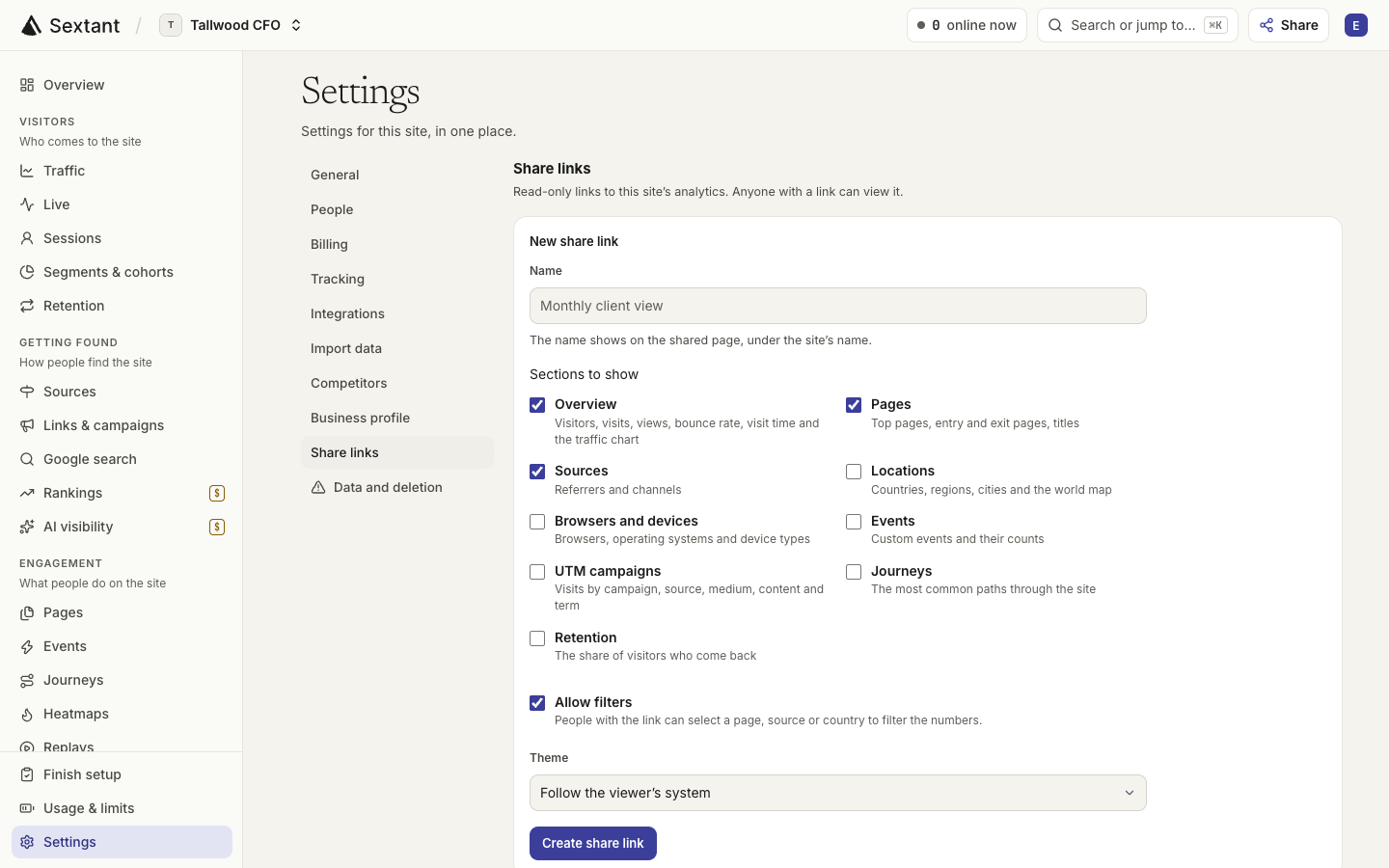
- Share links: a read-only link to the analytics sections you choose, without a login. Create one.
- Viewer logins: for leaders who should also see Google search, rankings and AI visibility.
- A summary from your AI: your AI writes it from live data, in your words, ready to paste into a deck or email.
Use Sextant for example.com. Write a one-page summary of last month for our leadership team:
- Visits, leads (goals) and conversion rate, compared with the month before
- Which sources and campaigns drove the leads
- Google searches and AI answers where we gained or lost ground
- What we shipped (from the notes) and the 3 priorities for next month
Keep it plain and short, with the numbers in a table.Several marketing sites
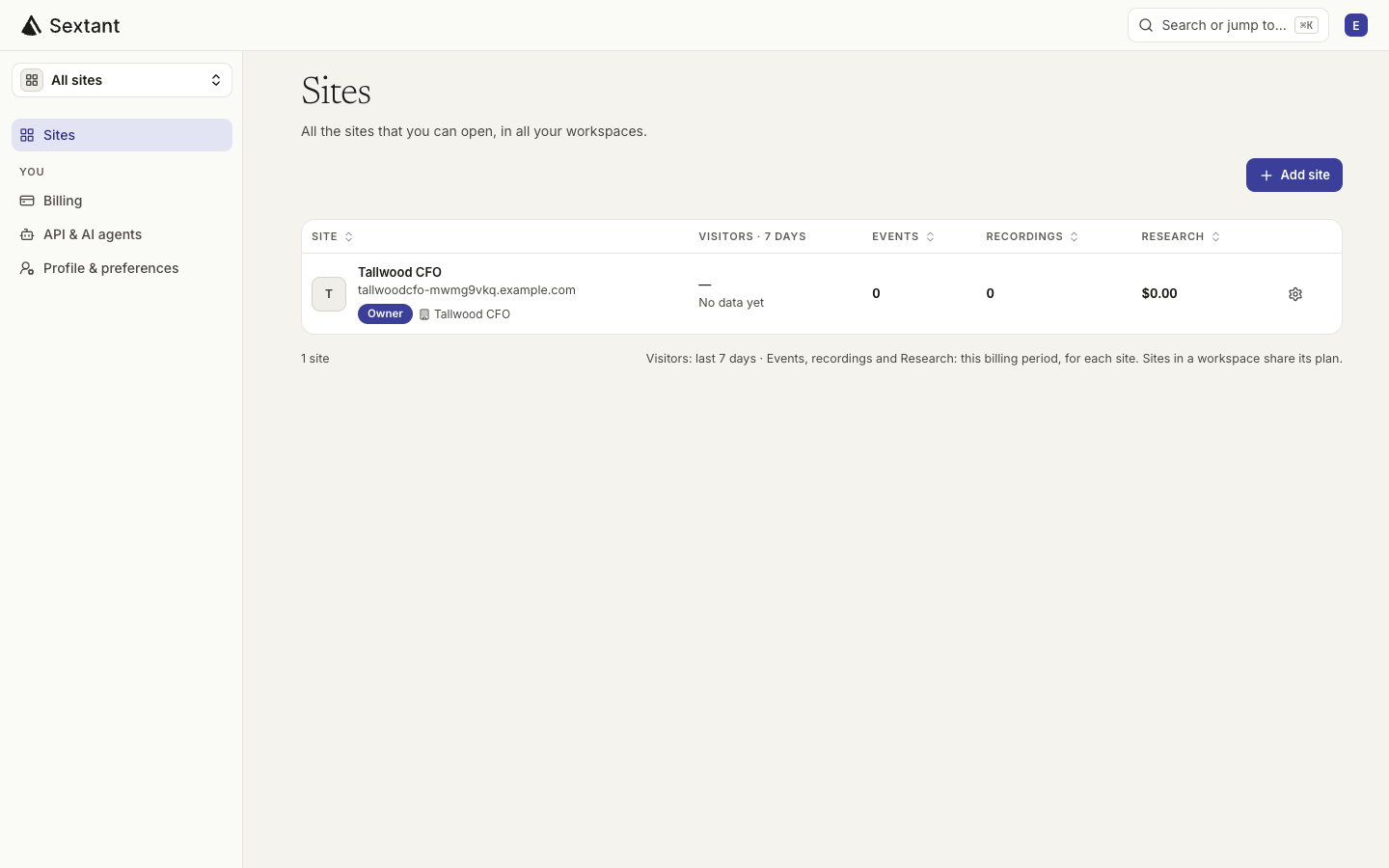
Add each site with Add site on All sites. Each one has its own setup, tracking code and Google property, and its own people: a regional team can see only its site.
- Ask across sites in your AI: “Compare leads on our three sites last month.”
- All sites share the workspace’s monthly Research credit. Each site’s Usage & limits page can cap its share.
- A product on a subdomain can stay in the same site: several domains.
Each person connects their own AI
AI apps link to a person, not to the workspace. Each colleague connects their own app and approves it with their own Sextant login, and the AI then works at their level on each site.
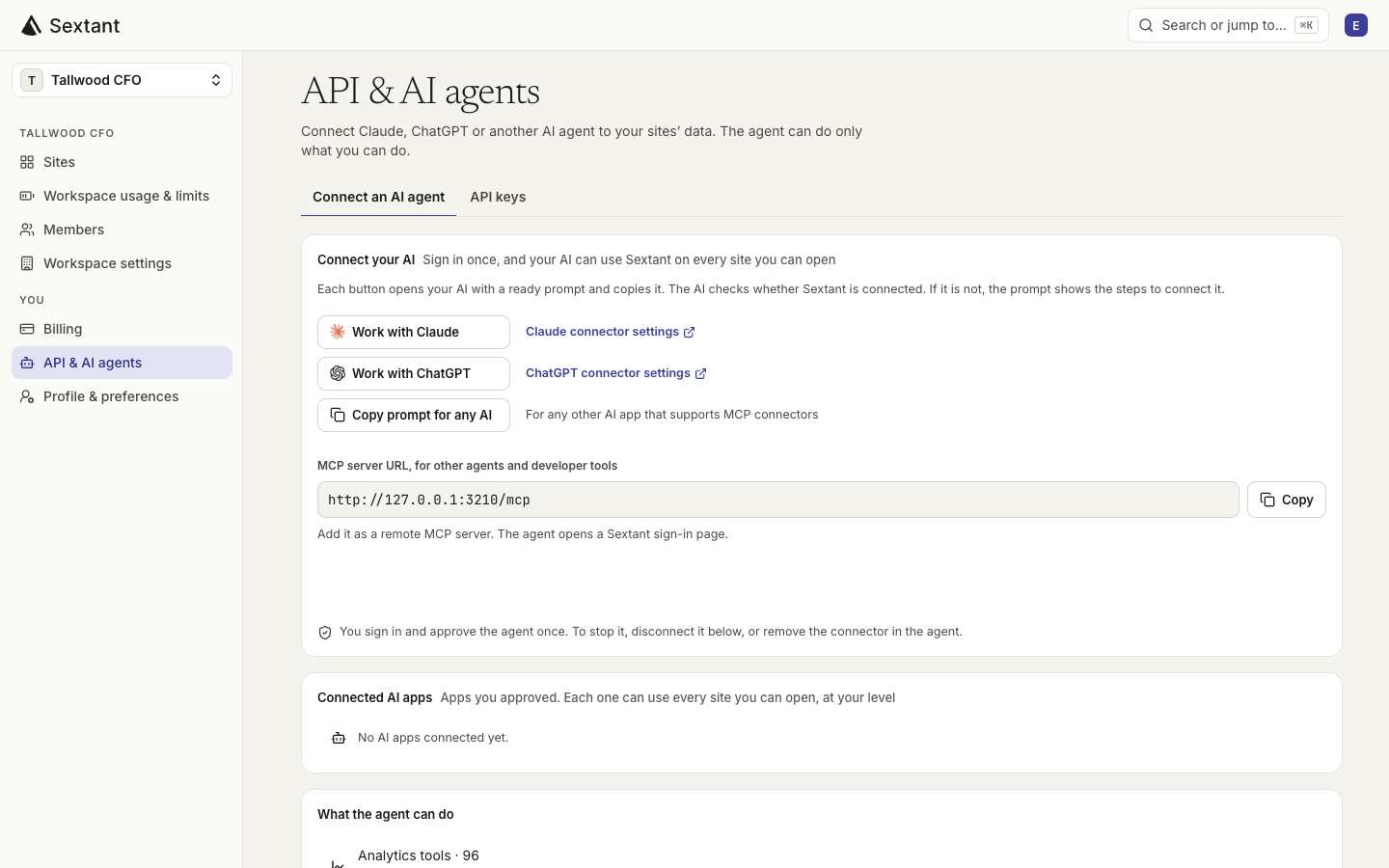
- On Claude Team or Enterprise, an Owner adds Sextant once for the organization; each person then clicks Connect. Connect Claude.
- On ChatGPT Business or Enterprise, an admin may need to allow custom MCP servers. Connect ChatGPT.
- Want an AI that only reads? Turn off Make changes and run paid lookups on the approve page. What you approve.